
docker-machine 是docker官方提供的docker管理工具 。
通过docker-machine可以轻松的做到:
在Windows平台和MAC平台安装和运行docker
搭建和管理多个docker 主机
搭建swarm集群
环境win下面安装的virtualbox,virtualbox安装的centos7,网络模式NAT+hostonly
ip:192.168.56.102(hostonly)
1、安装docker-machine:
curl -L https://github.com/docker/machine/releases/download/v0.13.0/docker-machine-`uname -s`-`uname -m` >/tmp/docker-machine &&chmod +x /tmp/docker-machine &&sudo cp /tmp/docker-machine /usr/local/bin/docker-machine2、查看docker-machine版本:
# docker-machine version[root@docker ~]# docker-machine versiondocker-machine version 0.13.0, build 9ba6da93、在centos7环境下创建machine:
[root@localhost ~]# docker-machine create -d virtualbox defaultCreating CA: /root/.docker/machine/certs/ca.pemCreating client certificate: /root/.docker/machine/certs/cert.pemRunning pre-create checks...Error with pre-create check: "VBoxManage not found. Make sure VirtualBox is installed and VBoxManage is in the path"但是却报错了,以为virtualbox安装的centos7环境支持的是virtualbox驱动,才发现环境安装支持virtualbox驱动
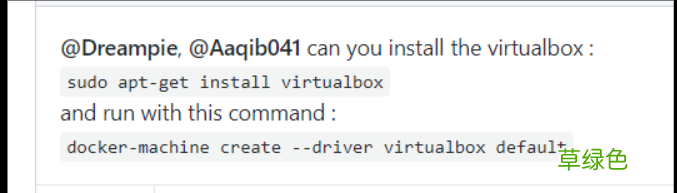
使用virtualbox驱动需要安装virtualbox,而Ubuntu的解决方法为:
文章插图
于是采用generic驱动,具体介绍查看官网:https://docs.docker.com/machine/drivers/generic/
[root@localhost ~]# docker-machine create -d generic --generic-ip-address=192.168.56.102 --generic-ssh-key ~/.ssh/id_rsa --
generic-ssh-user=root vm依然报错,这是由于docker-machine为本机创建machine时也需要进行ssh认证:
Running pre-create checks...
Creating machine...
(vm) Importing SSH key...
Waiting for machine to be running, this may take a few minutes...
Detecting operating system of created instance...
Waiting for SSH to be available...
Error creating machine: Error detecting OS: Too many retries waiting for SSH to be available. Last error: Maximum number of retries (60) exceeded
--generic-ip-address=192.168.56.102:这里的ip是指本机,如果需要为其他远程docker主机安装可以改为其他docker主机ip(这里是本地创建docker-machine)
[root@localhost ~]# ssh-keygen[root@localhost ~]# ssh-copy-id root@192.168.56.102将密码发给自己,然后重新继续创建machine:
[root@localhost ~]# docker-machine create -d generic --generic-ip-address=192.168.56.102 --generic-ssh-key ~/.ssh/id_rsa --generic-ssh-user=root vmRunning pre-create checks...Creating machine...(vm) Importing SSH key...Waiting for machine to be running, this may take a few minutes...Detecting operating system of created instance...Waiting for SSH to be available...Detecting the provisioner...Provisioning with centos...Copying certs to the local machine directory...Copying certs to the remote machine...Setting Docker configuration on the remote daemon...Checking connection to Docker...Docker is up and running!To see how to connect your Docker Client to the Docker Engine running on this virtual machine, run: docker-machine env vm于是终于创建machine成功了
查看docker-machine:
[root@localhost ~]# docker-machine ls NAME ACTIVE DRIVER STATEURLSWARM DOCKERERRORSvm-generic Running tcp://192.168.56.102:2376v17.09.0-ce 查看vm的环境变量:
[root@localhost ~]# docker-machine env vmexport DOCKER_TLS_VERIFY="1"export DOCKER_HOST="tcp://192.168.56.102:2376"export DOCKER_CERT_PATH="/root/.docker/machine/machines/vm"export DOCKER_MACHINE_NAME="vm"# Run this command to configure your shell: # eval $(docker-machine env vm)加载环境变量:
[root@localhost ~]# eval $(docker-machine env vm)利用ssh登录到machine中:
[root@localhost ~]# docker-machine ssh --helpUsage: docker-machine ssh [arg...]Log into or run a command on a machine with SSH.Description:Arguments are [machine-name] [command][root@localhost ~]# docker-machine ssh vmLast login: Sat Nov 4 17:55:53 2017 from 192.168.56.102[root@vm ~]# 现在在本地环境创建一个容器启动:
[root@localhost ~]# docker run -d --name=nginx nginx[root@localhost ~]# docker ps -aCONTAINER IDIMAGECOMMANDCREATEDSTATUSPORTSNAMES6e62975fab90nginx"nginx -g 'daemon ..." About a minute ago Up 59 seconds80/tcpnginx然后ssh远程到docker-machine中:
[root@localhost ~]# docker-machine ssh vmLast login: Sat Nov 4 18:13:27 2017 from 192.168.56.102[root@vm ~]# docker ps -aCONTAINER IDIMAGECOMMANDCREATEDSTATUSPORTSNAMES6e62975fab90nginx"nginx -g 'daemon ..." About a minute ago Up About a minute 80/tcpnginx可以看见docker主机和docker-machine主机里面的容器id相同
利用docker-machine能够安装docker和创建容器
上面是本地为自己创建machine,现在为远程的docker主机创建docker-machine:
环境:centos7,192.168.101.14,vmware下面安装的docker以及docker-machine,为192.168.56.102这台docker主机创建machine:
(两个ip不同进行了转发所以可以访问(前面是vm下面的nat的静态ip,后面是virtualbox的两张网卡(nat和host only)))
1、首先将192.168.101.14和主机192.168.56.102进行ssh连接认证:
[root@docker ~]# ssh-keygen[root@docker ~]# ssh-copy-id root@192.168.56.1022、创建machine:
[root@docker ~]# docker-machine create -d generic --generic-ip-address=192.168.56.102 --generic-ssh-key ~/.ssh/id_rsa --generic-ssh-user=root defaultCreating CA: /root/.docker/machine/certs/ca.pemCreating client certificate: /root/.docker/machine/certs/cert.pemRunning pre-create checks...Creating machine...(default) Importing SSH key...Waiting for machine to be running, this may take a few minutes...Detecting operating system of created instance...Waiting for SSH to be available...Detecting the provisioner...Provisioning with centos...Copying certs to the local machine directory...Copying certs to the remote machine...Setting Docker configuration on the remote daemon...Checking connection to Docker...Docker is up and running!To see how to connect your Docker Client to the Docker Engine running on this virtual machine, run: docker-machine env default执行环境变量,进入到machine环境:
[root@docker ~]# docker-machine env default[root@docker ~]# eval $(docker-machine env default)3、查看创建的machine:
[root@docker ~]# docker-machine lsNAMEACTIVE DRIVER STATEURLSWARM DOCKERERRORSdefault -generic Running tcp://192.168.56.102:2376v17.09.0-ce 可以看见在192.168.101.14环境上为远程主机192.168.56.102创建的machine
4、创建容器:
[root@docker ~]# docker run -d --name=nginx nginx(本地没有nginx镜像)b1f08986f6d5dbb1ede699e915bde734bab278fbe70f93af06ec2267fae2fef3[root@docker ~]# docker ps -aCONTAINER IDIMAGECOMMANDCREATEDSTATUSPORTSNAMESb1f08986f6d5nginx"nginx -g 'daemon ..." 4 seconds agoUp 3 seconds80/tcpnginx5、ssh到machine:[root@docker ~]# docker-machine ssh defaultLast login: Sat Nov 4 18:51:49 2017 from 192.168.56.1[root@default ~]# docker ps -aCONTAINER IDIMAGECOMMANDCREATEDSTATUSPORTSNAMESb1f08986f6d5nginx"nginx -g 'daemon ..." 23 seconds agoUp 22 seconds80/tcpnginx现在查看远程主机是否创建了容器:
[root@localhost ~]# docker ps -acould not read CA certificate "/root/.docker/machine/machines/default/ca.pem": open /root/.docker/machine/machines/default/ca.pem: no such file or directory报错原因:
由于刚刚在192.168.56.102为自己设置了machine,保留了之前machine的环境变量,虽然现在删除了,但是设置了环境变量,将刚刚设置的环境变量取消:
[root@localhost ~]# unset DOCKER_TLS_VERIFY[root@localhost ~]# unset DOCKER_CERT_PATH[root@localhost ~]# unset DOCKER_MACHINE_NAME[root@localhost ~]# unset DOCKER_HOST然后重新查看:
[root@localhost ~]# docker ps -aCONTAINER IDIMAGECOMMANDCREATEDSTATUSPORTSNAMESb1f08986f6d5nginx"nginx -g 'daemon ..." 8 minutes agoUp 8 minutes80/tcpnginx可以发现,为远程主机创建容器成功
现在192.168.101.14上面存在镜像centos_nginx:v4,而远程主机192.168.56.102没有该镜像,现在创建容器,看是否远程主机能够创建成功?
[root@docker ~]# docker pull registry.cn-hangzhou.aliyuncs.com/wadeson/jsonhc:v4[root@docker ~]# docker imagesREPOSITORYTAGIMAGE IDCREATEDSIZEnginxlatestb72d63324dbb13 hours ago108MBregistry.cn-hangzhou.aliyuncs.com/wadeson/jsonhc v46c5128aaff052 days ago464MB然后在远程主机查看:
[root@localhost ~]# docker imagesREPOSITORYTAGIMAGE IDCREATEDSIZEnginxlatestb72d63324dbb13 hours ago108MBregistry.cn-hangzhou.aliyuncs.com/wadeson/jsonhc v46c5128aaff052 days ago464MB可以看见两主机的镜像同步,也是容器也是同步的
vm下面的docker可以为virtualbox下面的docker创建容器
而更多的是本地可以为云等其他环境创建容器,通过docker-machine
在这之前192.168.101.14的images都不见了,那是因为设置machine环境变量:
unset DOCKER_TLS_VERIFYunset DOCKER_CERT_PATHunset DOCKER_MACHINE_NAMEunset DOCKER_HOST执行上面将machine的环境变量取消就可以返回原来的环境了:
[root@docker ~]# docker imagesREPOSITORYTAGIMAGE IDCREATEDSIZEcentos_initv1383ff350244326 hours ago448MBcentos_nginxv86f792dc07c352 days ago464MBcentos_nginxv79e875385d6be2 days ago464MBcentos_nginxv6959fdf4d42882 days ago464MBcentos_nginxv55c11313066862 days ago464MBregistry.cn-hangzhou.aliyuncs.com/wadeson/jsonhc v46c5128aaff052 days ago464MB192.168.101.14:5000/centos_nginxv46c5128aaff052 days ago464MBcentos_nginxv46c5128aaff052 days ago464MBcentos_nginxv30e49a2c0562f2 days ago464MBcentos_nginxv22031faf8894a2 days ago464MBcentos_nginxv178d18f16e7573 days ago464MBregistrylatest2ba7189700c89 days ago33.3MBubuntulatest747cb2d60bbe3 weeks ago122MBcentoslatest196e0ce0c9fb7 weeks ago197MB而如果需要返回machine环境就继续执行machine环境变量就行,这种方式很好的隔离了本地和远程镜像和容器
【docker之docker-machine用法详解】到此这篇关于docker之docker-machine用法详解的文章就介绍到这了,更多相关docker machine 用法内容请搜索考高分网以前的文章或继续浏览下面的相关文章希望大家以后多多支持考高分网!
- 春季老年人吃什么养肝?土豆、米饭换着吃
- 三八妇女节节日祝福分享 三八妇女节节日语录
- 老人谨慎!选好你的“第三只脚”
- 校方进行了深刻的反思 青岛一大学生坠亡校方整改校规
- 脸皮厚的人长寿!有这特征的老人最长寿
- 长寿秘诀:记住这10大妙招 100%增寿
- 春季老年人心血管病高发 3条保命要诀
- 眼睛花不花要看四十八 老年人怎样延缓老花眼
- 香槟然能防治老年痴呆症? 一天三杯它人到90不痴呆
- 老人手抖的原因 为什么老人手会抖